Polymarket Chart Trading: Place Orders from Your Chart
A practical walkthrough of manual Polymarket chart orders: choose the outcome, prepare a price, review the ticket and follow the resulting order.

In this story
Polymarket chart trading lets you work with an outcome’s price history and order levels in the same workspace. In HeyTraders, you can prepare a manual order beside the chart, bring a price from the order book into the ticket, and adjust draft TP/SL levels. You do not need to build a trading bot.
This guide follows the manual workflow. For keyboard presets use the hotkey guide; for a broad workspace overview use the Polymarket trading terminal guide.
1. Select the market, outcome and active chart
Open the workspace and choose the Polymarket market you want to trade. Confirm the exact question or recurring round and the selected Up/Down or Yes/No outcome. In a multi-chart layout, select the chart you intend to use before preparing an order.
An outcome chart’s cents price and an underlying BTC chart’s dollar price represent different instruments. A BTC reference chart can inform your decision; your Polymarket order still targets the selected outcome shares.
2. Prepare the entry price and size
Choose Buy or Sell and the intended order type in the order panel. Clicking an order-book price passes that price into order entry; it does not itself send the order. Review the resulting price and whether the size field represents shares or a currency amount.
Use the chart’s order controls to prepare the draft level and compare it with the ticket. The chart provides price context while the numerical fields provide the values to check. For a limit order, decide whether your price should rest on the book or trade against current liquidity.
3. Add take profit or stop loss if needed
Enable Take Profit / Stop Loss in the ticket when you want conditional exits. Review each trigger, exit size and execution choice. Adjusting a draft chart level updates the corresponding order inputs; inspect both together.
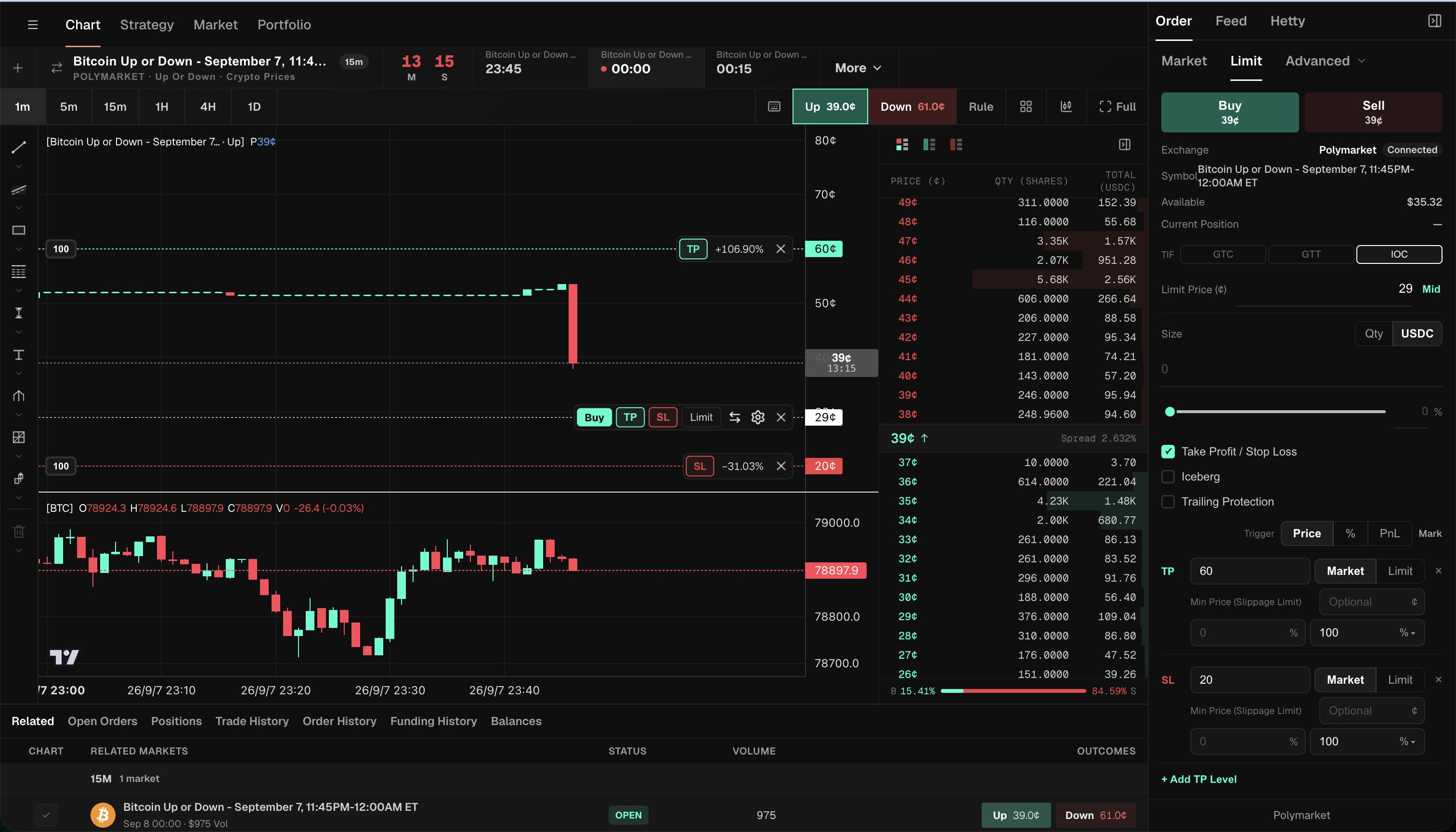
The existing configuration example shows entry 29¢, TP 60¢ and SL 20¢. These are illustrative settings, not recommended current prices or evidence of a fill. The stop-loss guide and take-profit guide explain the individual fields.
4. Distinguish a draft from Quick Order
A chart draft is a set of inputs to review. Quick Order is a separate configurable submission flow. Check its settings before using it; do not assume that every chart click is only a preview. Desktop hotkeys have their own presets and enable controls.
For this walkthrough, prepare and review the draft first. If you choose to submit a real order, verify the account, market, outcome, side, price and size at that point.
5. Follow the actual order, not just its line
After submission, inspect Open Orders, filled quantity and trade history. A line at your target price does not prove execution. A partial fill leaves a remaining quantity to manage. Polymarket describes the difference between order creation, matching and settlement in its order lifecycle documentation.
Before switching to another market or recurring round, check which instrument is active and which orders still belong to the previous market. For rule-based decisions instead of manual entries, use the no-code bot tutorial.
Frequently asked question
Can I place Polymarket orders from a chart?
Yes. HeyTraders lets you prepare manual Polymarket orders beside the outcome chart and order book. Chart drafts and the order ticket show the price and size; submission is a separate action unless you intentionally use the configured Quick Order flow.
One last thing
Was this story helpful?
Your perspective helps us improve our guides.
No sign-in needed. An anonymous session remembers your response on this browser. Privacy
A little more perspective.
What Is Polymarket? How to Read a Prediction Market
A beginner's guide to reading Polymarket. Start with the market rules, then compare the implied probability with prices in the order book.

Betmoar
A guide to Betmoar’s Polymarket web terminal and Discord interface, including market research, news, order entry, keyboard controls and costs.

Polymarket Hotkeys: Set Up Keyboard Trading in HeyTraders
Configure number-key presets for manual Polymarket trading. Understand which chart a key acts on, what each slot does and when a key can submit immediately.
