Polymarket Trading Terminals: How to Compare Your Options
Compare Polymarket terminals by the work you need to do: follow related markets, inspect the order book, prepare orders on a chart, and manage supported exit instructions.
In this story
- What changes when you use a different trading terminal?
- Different Polymarket trading terminals: examples to research
- Seven questions to ask before choosing a terminal
- How HeyTraders connects market research and order entry
- Create a no-code Polymarket trading bot in the same terminal
- Frequently Asked Questions
A Polymarket trading terminal is a workspace for finding markets, reading prices and liquidity, placing orders, and tracking positions. A third-party terminal can reorganize those tasks or add tools such as chart-based order entry and supported automated exits. It does not create a different underlying market simply by giving you a different screen.
If you are comparing different trading terminals for Polymarket, start with the task you want to improve: finding an event, managing several outcomes, reviewing an order before sending it, or setting a supported exit rule. Then check account access, execution controls, and costs. A longer feature list is not automatically a better fit.
Editorial note: This guide is published by HeyTraders. Third-party examples summarize official descriptions checked on September 7, 2026; the HeyTraders section describes our own terminal features and their limits. This is not a hands-on review of competing products, a speed benchmark, a security audit, or a ranking of the best terminals.
What changes when you use a different trading terminal?
Here is the actual HeyTraders workspace: the outcome chart is on the left, the order book is beside it, and the order ticket is on the right. It demonstrates a practical reason to use a Polymarket stop loss trading terminal: you can review the chosen outcome, price levels and TP/SL instructions together.
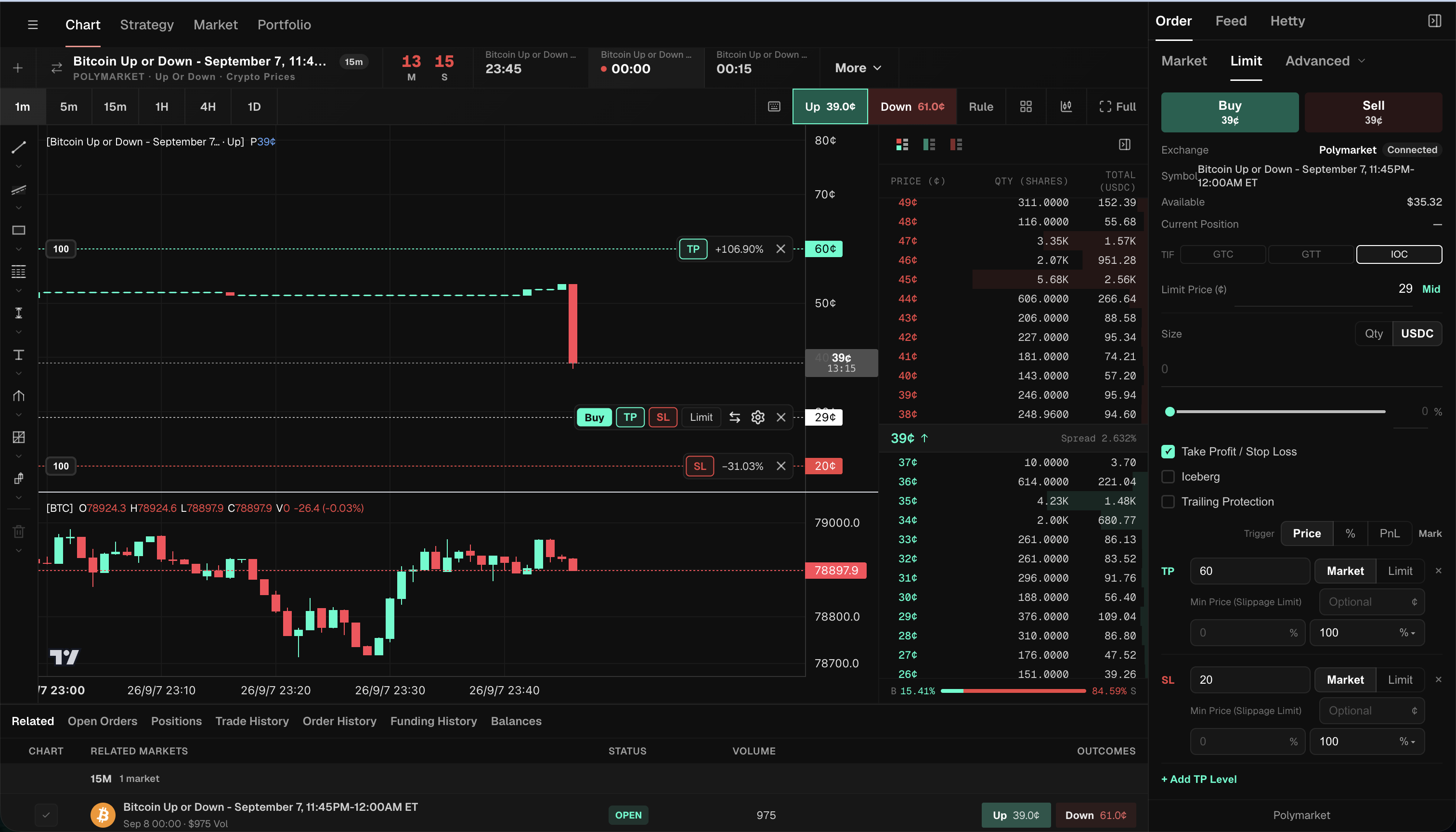
Use this three-part check when comparing different trading terminals for Polymarket:
- Find the market: confirm the event, time window and Up/Down or Yes/No outcome in the chart and ticket.
- Read the book: compare bids, asks and available size with the price you intend to enter.
- Prepare the order: review the draft entry and the separate TP/SL controls. The chart lines make the price relationships visible; submission remains a separate action.
Think of the terminal as the trading workspace and Polymarket as the venue. A terminal can change the layout, shortcuts, information density, and instructions you configure. Orders routed to Polymarket still reach its order book and follow its settlement process. Polymarket’s trading overview explains that separation between authorized orders, matching, and settlement.
You may not need another terminal if the native interface already makes your decisions easy to review. Consider another interface when you can name a specific friction point: too much switching between markets, unclear pending orders, or a need for an order tool your current interface does not provide.
A terminal is also not synonymous with a strategy bot. One is an interface; the other makes trading decisions from rules. Some products combine them, but supporting manual orders or a stop-loss instruction does not establish support for arbitrary automated strategies. Our Polymarket trading bot guide covers that distinction in more detail.
Different Polymarket trading terminals: examples to research
These examples illustrate different product directions. The final column is a question to investigate, not a claim that a product lacks the feature.
| Interface | Documented focus | What to verify for your workflow |
|---|---|---|
| Polymarket’s native interface | The venue’s own starting point for its markets and account. Use the official trading documentation as your reference. | Can you comfortably review the market, place your intended orders, and manage the position without another interface? |
| HeyTraders | Multiple market charts, chart-based advanced orders, and chat-based custom Polymarket bots in Paper or Live mode. | Review available order types, generated strategy rules, the selected mode, and account permissions. Historical Polymarket backtesting is not currently supported. |
| Polytrader2 | An open-source desktop client whose site describes dedicated trading windows, order books, charts, manual orders, and local wallets. | Does the current release support your device and account connection? Review its wallet handling and release documentation. |
| ProTrade | A terminal whose site emphasizes price ladders, keyboard controls, multiple market windows, and position views. | Do its ladder and shortcut conventions suit you? Check confirmation behavior and its separate terminal fee schedule. |
This is a non-exhaustive shortlist for further research. “Open source,” “self-custody,” and “fast execution” describe different attributes; none is a substitute for verifying the specific software, permissions, and trading workflow you will use.
Seven questions to ask before choosing a terminal
1. Can it connect to the account that already holds your positions?
Do not assume that signing in with the same email or connecting a familiar wallet will reveal the same trading account everywhere. Polymarket distinguishes the signer, which authorizes actions, from the account wallet, which holds funds and positions. Its wallets and authentication documentation explains how an existing account is connected.
Check which account types the terminal supports and compare the displayed account address with the one you intend to use. If a tool creates a new wallet, that is not evidence that it has imported your existing positions. Resolve the account identity before moving funds.
2. Does the displayed price describe an executable order?
A probability headline, the latest trade, and the best available offer are different pieces of information. Polymarket’s price documentation notes that the displayed price may be a midpoint or a last-traded price. Neither guarantees the price available for your order size.
For an illustrative comparison, suppose the best bid is 47 cents and the best ask is 49 cents. A 48-cent headline does not mean you can buy immediately at 48 cents. If only 50 shares are offered at 49 cents, a 200-share purchase also needs more liquidity or a different execution choice.
Look for a clear distinction between the displayed probability, bid and ask, available size, and your chosen price limit. Compare the same outcome and size across terminals; otherwise, the screenshots are answering different questions.
3. Can you tell an accepted order from a completed trade?
The interface should make the result of an action legible. After submission, can you distinguish a pending request, an open order, a partial fill, a completed fill, and a rejection? Can you see the remaining amount after a partial fill?
Polymarket documents several order behaviors and lifecycle states, including resting orders and immediate-execution instructions. A terminal’s friendly button labels need to map clearly to the behavior you intend. A successful click is not, by itself, a filled trade.
Also check how cancellation is confirmed. Do not interpret a dismissed panel or a locally removed row as evidence that the venue has cancelled an order.
4. Do the controls help you catch mistakes before sending them?
Speed is useful only after the market, outcome, side, size, and price are correct. Decide where you want an explicit review step and where a shortcut genuinely helps.
For example, ask whether a size preset represents shares or a currency amount, whether Buy and Sell are visually distinct, and whether a keyboard shortcut stays bound to the market you expect after switching tabs. On a phone, check the actual order controls, not just a responsive marketing page.
These are workflow checks you can make without believing a millisecond claim or executing a trade. A terminal should make an accidental order less likely, not merely make every click faster.
5. What access are you granting, and how do you remove it?
Before connecting, understand whether the product asks for a wallet signature, a trading credential, a delegated permission, or a private-key import. These are not interchangeable security choices.
Read the provider’s documentation for where signing happens, what it stores, and how to disconnect or revoke access. Never send a recovery phrase or private key to support, a chat assistant, or an unsolicited link. Stop if the requested access is unclear. A product’s custody label alone does not establish the safety of its application or your device.
6. What is the total cost of the same intended trade?
Separate the terminal’s charges from the venue’s fees and the spread you cross. A subscription, per-trade service charge, funding intermediary cost, and an unfavorable fill can affect the comparison in different ways.
Polymarket’s fee documentation describes fees that vary by market. A terminal advertising no subscription is not necessarily free per trade, and a terminal’s own fee table may exclude venue fees. Check the current schedule and the final order preview instead of using a single headline percentage.
For a useful estimate, keep the market, order size, and maker-versus-taker behavior consistent. Otherwise, an apparent price advantage may simply reflect a different order.
7. What continues running when you close the application?
Ask the provider to distinguish an order already resting on the venue from an instruction still waiting for a terminal or service to act. Does an alert need the app open? Where is a trigger monitored? What happens if a connection fails? How do you disable the instruction and confirm the result?
Do not infer unattended strategy execution from the presence of a stop-loss button. Supported order automation and a programmable live-strategy service are different capabilities. If your requirement is a specific conditional exit, evaluate that order’s documented behavior rather than treating the terminal as a general-purpose bot.
How HeyTraders connects market research and order entry
In HeyTraders, the Polymarket workflow brings market charts, the order book, and order controls into the same workspace. The useful comparison is how those pieces connect, not just whether a terminal lists “charts” or “advanced orders” on its homepage.
Follow related markets in one chart workspace
You can add markets from a Polymarket event to separate charts in the workspace. That lets you follow related outcomes together instead of continually replacing the chart you are studying. Each chart retains its own selected market and outcome; placing them next to each other does not combine their liquidity or positions.
For example, you might keep two markets from the same event visible while deciding which outcome to examine more closely. Before preparing an order, check which chart and outcome are selected.
Bring a price from the order book into order entry
Clicking a price in the HeyTraders order book passes that price to order entry for the selected chart. This connects the liquidity view with the order you are preparing, without requiring you to copy the price by hand. Selecting a book price is an input action, not an order submission or a guaranteed fill.
The earlier bid-and-ask distinction still matters: inspect the available size and review whether your order would rest on the book or cross it. A clicked price can stop being available before you submit.
Prepare orders and exit levels on the chart
HeyTraders supports chart-based order drafts and adjustable take-profit and stop-loss levels. Changes to those draft levels are reflected in the order panel, so you can review the numerical inputs alongside their position on the chart. Chart quick-order submission is a separate, configurable action; confirm its settings before using it.
For orders spread across a price range, Scale is the name used in the terminal for the grid-order workflow. You configure a range, order count, and size allocation rather than entering every level separately. This distributes an order across levels; it is not a promise of an endlessly replenishing grid bot or a custom live strategy.
Add managed exit instructions
HeyTraders supports Polymarket stop-loss, take-profit, and trailing-stop instructions. HeyTraders keeps these instructions and submits an order to Polymarket after the trigger condition is met. Its prediction-market triggers use the last traded price; reaching that price does not guarantee that your entire position can exit there.
These controls are useful when your requirement is a defined exit instruction. They do not eliminate liquidity risk: a triggered order can slip, fill partially, or remain unfilled. The algo-order guide explains the individual order tools in more detail.
Available controls depend on the connected account and selected market. Check the enabled order types and any displayed limitations when preparing the order; a feature listed for the terminal is not evidence that every account and market supports every variation.
Create a no-code Polymarket trading bot in the same terminal
HeyTraders supports custom Polymarket strategies in Paper and Live modes as well as order-specific tools. Describe the market, signal, entry rules and size to Hetty; review the generated Signal DSL; then choose the execution mode. You do not need to write your own Polymarket API client to create those rules.
Use the order ticket when the job is a specific stop loss, take profit, or scheduled order. Use the strategy-building workflow when a bot should decide when to enter from supported market or reference data. Our Polymarket bot overview explains the distinction, and the hands-on no-code bot tutorial walks through strategy creation.
Paper uses incoming data with simulated execution; Live requires an eligible connected account and your confirmation. Historical Polymarket backtesting is not currently supported, so the historical backtesting workflow for other supported venues should not be presented as a Polymarket result.
Whatever interface you select, check Polymarket’s current availability restrictions and the terminal’s own terms. Another interface is not a workaround for eligibility rules. Prediction-market trading can lose the amount you put at risk, and an exit instruction does not guarantee a fill or a maximum loss.
Frequently Asked Questions
What is a Polymarket trading terminal?
A Polymarket trading terminal is an interface for finding markets, reviewing prices and liquidity, placing orders, and managing positions. A third-party terminal may change that workflow or add order tools, but orders routed to Polymarket still depend on its underlying venue.
How should I compare different trading terminals for Polymarket?
Compare the same market, outcome, order size, and intended action. Check account compatibility, executable prices, order states, permissions, total costs, and what stops or continues when you close the application. Treat advertised features as claims to verify, not proof of performance.
Will my existing Polymarket positions appear in another terminal?
Not automatically. Confirm that the terminal supports your account wallet and connects to the account that holds your positions. Creating a new wallet does not move existing positions into it. Check the connection instructions before transferring funds or sharing credentials.
What can I do in the HeyTraders Polymarket terminal?
You can follow multiple market charts, select an order price from the order book, prepare chart-based orders, and use supported Scale, stop-loss, take-profit, and trailing-stop instructions. You can also describe a custom Polymarket strategy to Hetty, review its generated rules, and choose Paper or Live. Available controls depend on the connected account and selected market.
Can HeyTraders run a custom Polymarket trading bot?
Yes. HeyTraders supports custom Polymarket strategies in Paper and Live modes. Describe the strategy, review its generated Signal DSL, and choose the mode separately. Live execution requires an eligible connected account and confirmation. Historical Polymarket backtesting is not currently supported.
One last thing
Was this story helpful?
Your perspective helps us improve our guides.
No sign-in needed. An anonymous session remembers your response on this browser. Privacy
A little more perspective.
Polymarket Trading Strategy: How to Automate It
Combine outside data like weather forecasts or Binance prices with Polymarket order rules—then inspect the generated DSL before running it.
Polymarket Trading Bots: How Automation Works and What to Watch
A Polymarket trading bot monitors markets and submits signed orders from predefined rules. Learn how the automation loop works, what you can automate, and where the real risks are.
Polymarket Algo Orders: The Complete Guide to Advanced Order Types
Polymarket natively supports only limit orders. Here is a complete overview of algo order types — stop loss, take profit, trailing stop, grid, OCO, TWAP — and how to add them.